


Move social bookmarks to the product information body
multimixer | learn | Tuesday July 26 2011I’m getting this question all the time: How to move the social bookmark links into the body of the product information page in osCommerce
Instead of answering each time by email, I thought to make a quick post about so that anyone who is interested can do it. Instructions are same for regular osCommerce users and mini template system users
Why should somebody want to move that social bookmarks into the page body? As we know, there is a special box in osCommerce, called “bm_social_bookmarks.php” that do exactly this. Well ok, it happens that some users don’t want to have any columns, but still want to have that bookmarks
Lets start, there are 2 ways to do it
Way 1: Output the box contents to the product information page
Things are very simple here. First you need to do the changes to all of your boxes as described here
Then, all you have to do is to output the contents of box “bm_information.php” to anywhere you would like the social bookmarks to appear, like this
if (class_exists(bm_social_bookmarks)) {
$boxdata = new bm_social_bookmarks;
echo $boxdata->dataF();
}
Now, ok, you may say that you don’t want this “boxed look” on the product information page. Unfortunately data is still mixed with html in osCommerce, so, the only thing you can do is to style that box via css (an article about that will follow) or to go on with way 2
Way 2 : use the box code on the product information page
The only file to work on is catalog/product_info.php Into this file, we are going to add following code
<?php
      if (tep_not_null(MODULE_SOCIAL_BOOKMARKS_INSTALLED)) {
        $sbm_array = explode(';', MODULE_SOCIAL_BOOKMARKS_INSTALLED);
        $social_bookmarks = array();
        foreach ( $sbm_array as $sbm ) {
          $class = substr($sbm, 0, strrpos($sbm, '.'));
          if ( !class_exists($class) ) {
            include(DIR_WS_LANGUAGES . $language . '/modules/social_bookmarks/' . $sbm);
            include(DIR_WS_MODULES . 'social_bookmarks/' . $class . '.php');
          }
          $sb = new $class();
          if ( $sb->isEnabled() ) {
            $social_bookmarks[] = $sb->getOutput();
          }
        }
        if (!empty($social_bookmarks))  $social = implode(' ', $social_bookmarks);
      }
?>
There is nothing new here, it’s just the code used in the bm_socials_bookmarks.php box. Only addition is that, we do check if any social bookmarks modules are installed before we proceed, to avoid the case to look for a class if there is nothing there.
Anyway, you can place that code to anywhere you like in product_info.php. Just take care to remove the opening and clsing hp tags (<?php …. ?>) in case you are already in php mode. This code does not display the bookmarks yet, so it really doesn’t matter to where you will place it, so lets say you add it after this section
    if (tep_not_null($product_info['products_model'])) {
      $products_name = $product_info['products_name'] . '<span class="smallText">[' . $product_info['products_model'] . ']</span>';
    } else {
      $products_name = $product_info['products_name'];
    }
?>
Next part is to decide about the display of that buttons. All we have to do is, to echo or variable $social that we created with the code above. This is completely up to you and your design I will add that code just before the buttons section, that is where it says
<div class="buttonSet">
I will also wrap that into a <p></p>, so that it looks like this
  <p class="social"><?php echo $social ?></p>

  <div class="buttonSet">
You noticed that I gave a class to my new <p>, I call it “social” but you can call it “kuku” or “titanic” or anything you like. I can now style that section as I like, for example some basic css looks like this
.social {text-align:right; padding:0 20px;}
p.social{margin:0;}
.social img{ vertical-align:middle;}
This you can add to the bottom of your stylesheet.css file
Mini template system users, please use following basic css
#product_info .social {text-align:right; padding:0 20px; position:relative; top:-20px;}
#product_info p.social{margin:0;}
#product_info .social img{ vertical-align:middle;}
and add it to file catalog/mts/themes/theme_base_001/style_custom.css
That’s all, and here is how it looks on one site where I did this
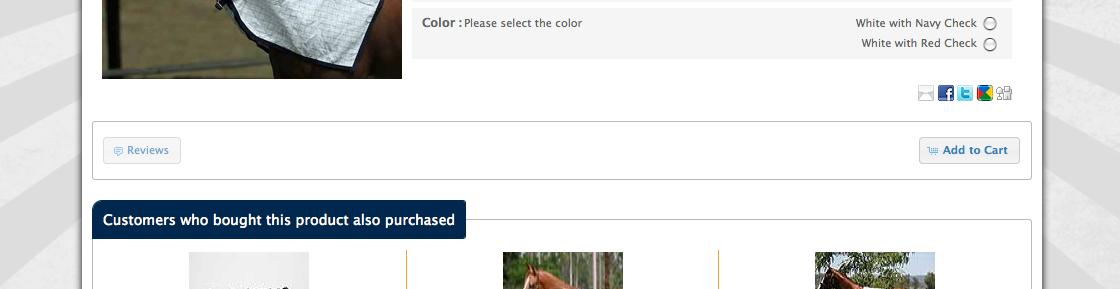
Enjoy
Image of article heading on the front page is from logorunner you can go and pick some nice icons from there

multimixer

Follow me on twitter. I'm not tweeting all day long and guaranteed no spam and no advertising.



Hi,
I used your “separating data from execution..” to customize my first oscommerce 2.31 website, all worked well with the boxes except the social bookmarks, here is the code, could you please help ?
Many thanks,
Ian
function dataF() {
global $HTTP_GET_VARS, $language;
if ( isset($HTTP_GET_VARS['products_id']) && defined(‘MODULE_SOCIAL_BOOKMARKS_INSTALLED’) && tep_not_null(MODULE_SOCIAL_BOOKMARKS_INSTALLED) ) {
$sbm_array = explode(‘;’, MODULE_SOCIAL_BOOKMARKS_INSTALLED);
$social_bookmarks = array();
foreach ( $sbm_array as $sbm ) {
$class = substr($sbm, 0, strrpos($sbm, ‘.’));
if ( !class_exists($class) ) {
include(DIR_WS_LANGUAGES . $language . ‘/modules/social_bookmarks/’ . $sbm);
include(DIR_WS_MODULES . ‘social_bookmarks/’ . $class . ‘.php’);
}
$sb = new $class();
if ( $sb->isEnabled() ) {
$social_bookmarks[] = $sb->getOutput();
}
}
if ( !empty($social_bookmarks) ) {
$data = ” .
‘ ‘ . MODULE_BOXES_PRODUCT_SOCIAL_BOOKMARKS_BOX_TITLE . ” .
‘ ‘ . implode(‘ ‘, $social_bookmarks) . ” .
”;
return $data;
}
}
}
function execute() {
global $oscTemplate;
$oscTemplate->addBlock($this->dataF(), $this->group);
}
Ian,
can you say what is not working?
You need to make sure that
1) You have any social bookmarks installed and enabled
2) You have the box “social bookmarks” installed – it does not to be enabled(= set to “true”)
Regarding the data you want to output, you could just use this
if ( !empty($social_bookmarks) ) {
$data = implode(‘ ‘, $social_bookmarks);
return $data;
}
Hi,
Many thanks for your answer, i was tired and not very clear so i apologize for that…
The social bookmarks are installed and enabled and the box too.
The previous code i paste was incomplete, may be an error when i copy/paste, here is the right part :
if ( !empty($social_bookmarks) ) {
$data = ” .
‘ ‘ . MODULE_BOXES_PRODUCT_SOCIAL_BOOKMARKS_BOX_TITLE . ” .
‘ ‘ . implode(‘ ‘, $social_bookmarks) . ” .
”;
When opening the product page, the site returns :
Class ‘bm_social_bookmarks’ not found in C:\wamp\www\Bladecraft\catalog\product_info.php on line 190
on line 190 there is :
$boxdata = new bm_social_bookmarks;
if (class_exists(bm_social_bookmarks)) {
$boxdata = new bm_social_bookmarks;
echo $boxdata->dataF();
}
Many thanks again for your kind help.
Ian
Ian,
Instead of this on the product information page
$boxdata = new bm_social_bookmarks;
if (class_exists(bm_social_bookmarks)) {
$boxdata = new bm_social_bookmarks;
echo $boxdata->dataF();
}
use this, as stated in the post above
if (class_exists(bm_social_bookmarks)) {
$boxdata = new bm_social_bookmarks;
echo $boxdata->dataF();
}
Does the box itself display on the page? Do you have any booksmarks (under admin>modules>social bookmarks) enabled?
Hi,
Sorry for late answer, i had to work on other projects.
I tried without “$boxdata = new bm_social_bookmarks;” the error message disapeared but nothing on the product page, only into the left column…
So i understood why, the right box name was ” bm_product_social_bookmarks “, and not “bm_product_social_bookmarks” like i copy it from your article above on way one.
Once name changed all was ok.
Thanks again for your help, i apologize for this syntax error.
Best regards
Ian
Thanks this code worked perfectly =D
Thanks for the comment
Hi George,
The new version of the oscommerce 2.3.3, the social bookmarks image was displayed in three lines, first line “email”, second line “google share”and third line the “rest of the other icons”, is there a way to line them all in just one line?
Thanks!
Lyn
Hi Lyn
I didn’t noticed any difference n the display of social bookmarks in version 2.3.3, it’s same as before
Maybe the issue is connected with something else?
It looks like the issue is actually with the google share and google + 1 button that seems to ignore the align right and go onto a new line..
Also noticed that facebook like and pinterest and twitter buttons also do not align up correctly with the smaller buttons.
Is there a work around for this?
If you use the standard buttons as per your example then everything works spot on..
Can confirm “not in line issue” for social buttons. Actual reason is in sb_facebook_like.php because facebook button has own iframe with aligements and height:35px. It displyed inline when I changed its height:20px and sorted it to be last in line